Get an ATS Safe Resume in Minutes: Best ATS Resume Formats for 2026
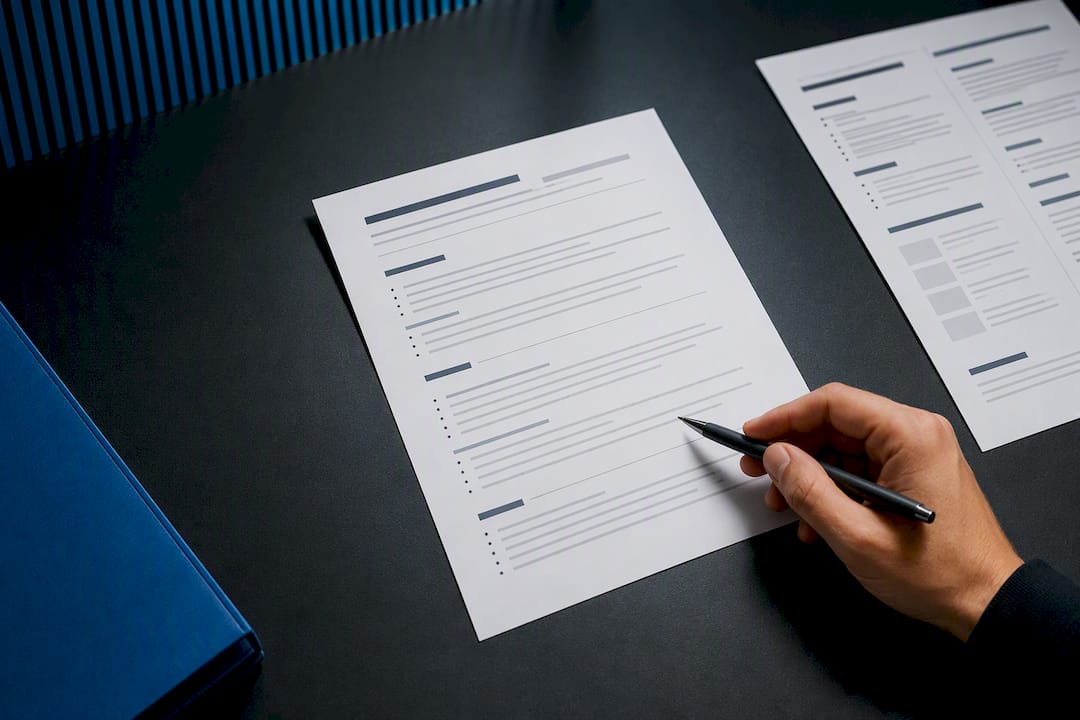
The single most ATS-friendly resume format is a single-column, reverse-chronological layout with standard section headings. It wins because parsing software reads top to bottom, left to right, and a straightforward structure gives it nothing to trip over. Skip columns, tables, and graphics, and the rest of this guide shows you exactly how to build one from scratch.
TL;DR:
- Using a single-column, reverse-chronological resume format with standard headings ensures better ATS parsing and reduces errors in data extraction.
- Avoid two-column, sidebar, or graphic-heavy templates, and keep crucial information in the main flow to prevent misreading by ATS software.
- Save resumes as text-based .docx files or well-formatted, scan-free PDFs to maximize compatibility, and always test by copy-pasting into plain text before submitting.
- Incorporate keywords from the job posting naturally across your summary, skills, and experience sections, matching both acronyms and full terms.
- Tailor each resume copy to the specific role using the employer’s language, and use ATS-friendly templates to streamline the application process.
Table of Contents
- What Are the Best ATS Resume Formats?
- How Do You Format a Resume So It Parses Correctly?
- Should You Save Your Resume as a .docx or PDF?
- How Do You Tailor Keywords Without Overstuffing Your Resume?
- What Should You Look for in an ATS-Safe Template?
- How JobAlign Puts These Rules Into Practice
- What Mistakes Do I See Most Often, and How Do I Fix Them?
- Get Your Resume ATS-Ready in Minutes, Not Hours
- Sources
What Are the Best ATS Resume Formats?
Reverse-chronological is the default winner for a reason: it lists your most recent job first, uses headings ATS software already expects, and gives recruiters a familiar structure to skim in six seconds flat. Career services offices consistently point job seekers toward this layout over anything fancier, because parsers map its sections cleanly into database fields.
Two-column or “sidebar” templates cause the most trouble. A parser reads left to right across the whole page, so when your skills sit in a narrow left column next to your work history in the main column, the software often interleaves the two, scrambling your dates with your job titles. If you love a modern-looking template, you can usually adapt it: flatten it into one column, move any sidebar content (skills, contact info) into the main flow, and remove decorative dividers.
Functional resumes, the kind organized by skill category instead of by job, carry real risk. They bury your work history, and many ATS platforms are built to expect chronological job entries. If you have an employment gap, don’t hide it in a functional format. Instead, use a hybrid approach: keep reverse-chronological as the backbone, and add a brief “Summary” at the top that frames your experience without drawing attention to the gap itself.
A parsing-friendly section order looks like this:
- Contact information (name, phone, email, city/state, LinkedIn URL)
- Summary or professional summary
- Skills
- Experience (reverse-chronological)
- Education
- Certifications, projects, or volunteer work, if relevant
That order isn’t arbitrary. It mirrors what most ATS platforms are coded to look for first, which speeds up parsing and reduces the odds of misread data.
How Do You Format a Resume So It Parses Correctly?
Formatting is where most good resumes quietly fail. You can have perfect content and still get rejected because the system couldn’t read it. ATS-friendly format checklists consistently point to the same handful of rules, and they’re worth following to the letter.
Start with layout. Use one column, full stop. No tables, no text boxes, no inserted images, and no headers or footers, since many parsers skip those regions entirely and your contact information can vanish along with them. Two-column templates fail in a meaningful share of parsing tests, and sidebars and icons make it worse.
Stick to standard headings. Parsers are trained to recognize common labels, so use “Summary,” “Experience,” “Education,” and “Skills” rather than creative alternatives like “Where I’ve Been” or “My Toolbox.” Cute headings might charm a hiring manager who reads past the ATS stage, but they confuse the software that decides whether that manager ever sees your resume.
Here’s a quick reference for the technical details:
| Element | Safe choice |
|---|---|
| Font | Calibri, Arial, or Georgia, standard readable size |
| Margins | standard 1 inch margins on all sides |
| Bullets | Plain round or square bullets, not arrows or icons |
| Dates | Month and year format (e.g., “March 2023 to Present”) |
| Contact info | Plain text in the body, not a header or footer |
A few more habits worth building in:
- Avoid merged cells or invisible tables used for spacing, since parsers often treat them like columns.
- Use consistent date formatting throughout, not a mix of “3/2023” and “March 2023.”
- Test your resume with the copy-paste method described below before you submit it anywhere.
Should You Save Your Resume as a .docx or PDF?
A .docx file is the safest default for most ATS platforms, since older and lower-budget systems sometimes stumble on PDFs. If a job posting specifically asks for a PDF, that’s fine, as long as it’s text-based rather than a scanned image. A scanned PDF has no selectable text, and to an ATS, that’s an empty page.
Here’s how to check yourself before you hit submit:
- Open your resume file and confirm you can highlight and select individual words with your cursor.
- If you can’t select text, you have an image file disguised as a PDF. Fix it by exporting directly from Word or Google Docs rather than scanning a printed copy.
- Name the file clearly: “FirstName_LastName_Resume.docx” reads far better to both software and a human recruiter than “Resume_Final_v3_USE_THIS.docx.”
- Run the copy-paste test: select your entire resume, paste it into a plain-text editor like Notepad, and see what survives. If words are jumbled, missing, or out of order, your layout needs fixing before you send it anywhere.
How Do You Tailor Keywords Without Overstuffing Your Resume?
Every job posting is a keyword answer key, and most job seekers barely glance at it before applying. Read the description twice: once for required skills, once for the exact phrasing the employer uses. If the posting says “project management” five times, your resume should say it too, not “managed initiatives” or some paraphrase that sounds similar to a human but not to a parser.

Placement matters as much as presence. Weave keywords into your summary, your skills section, and your bullet points under each job, rather than dumping them into a hidden block of text at the bottom (a trick that some older ATS advice recommended and that modern systems increasingly flag or ignore).
Cover both versions of technical terms. If a posting mentions “SEO,” also include “search engine optimization” somewhere in your resume, and do the reverse if the posting uses the long form. You don’t know which version the parser is scanning for, so give it both.
- Pull five to eight priority keywords straight from the “requirements” or “qualifications” section of the posting.
- Match acronyms with their full-phrase equivalents at least once each.
- Keep a master resume with your complete work history, then save a tailored copy for each application rather than editing the same file repeatedly.
- Reread your tailored version out loud. If it sounds like a keyword list instead of a sentence, dial it back.
Pro Tip: Keep your master resume in a separate file you never submit directly. Every tailored version should be a copy, so you’re never one accidental overwrite away from losing your full career history.
Building a fresh tailored version for every posting is tedious by hand, but it’s the single habit that separates people who occasionally get callbacks from people who get them consistently, according to industry-specific resume guidance for pilots. Tools that automate this step, like JobAlign’s tailoring workflow, exist specifically because doing it manually for every application doesn’t scale.
What Should You Look for in an ATS-Safe Template?
Not every template labeled “professional” is safe for parsing, and not every plain-looking template is either. Check for these before you commit to one:
- Single column throughout, with no sidebar for skills or contact details.
- No embedded images, icons, or graphic dividers between sections.
- Standard heading names built into the template rather than stylized labels.
- Simple bullet characters, not custom shapes or colored markers.
If you’ve already fallen for a beautiful two-column template, you don’t have to abandon it. Move sidebar content (usually skills or contact info) into the main column, delete any decorative lines or icons, and swap fancy bullets for plain ones. Small edits like these can turn a risky design into a parsable one in about ten minutes.
For a bare-bones skeleton you can paste directly into Word or Google Docs: name and contact line, then “Summary,” “Skills,” “Experience,” “Education,” and any relevant “Certifications” or “Projects” section, each as plain-text headings with no tables underneath. Microsoft Word’s own ATS template library follows this exact structure, which makes it a solid starting point if you’d rather not build from zero. JobAlign’s ATS-optimized templates are built around the same rules, minus the manual cleanup work.
How JobAlign Puts These Rules Into Practice
Everything in this checklist maps directly to how JobAlign builds resumes. The platform syncs with your LinkedIn profile to pull your work history accurately, which solves the data-entry errors that sneak into manually typed resumes. Every resume it generates uses parsable, single-column templates by default, so you’re not fighting sidebar layouts or decorative fonts.
- LinkedIn sync pulls your experience and skills directly, reducing manual entry mistakes.
- Templates follow single-column, standard-heading rules automatically.
- Export options include ATS-compatible PDF, matching the text-based rule covered earlier.
- Keyword integration analyzes job descriptions and slots relevant terms into the right sections.
JobAlign reports a high ATS pass rate across resumes generated on the platform, notably above the common industry rate of resumes filtered out before a human ever sees them.
What Mistakes Do I See Most Often, and How Do I Fix Them?
The biggest mistake isn’t bad content, it’s a template that looks great to a human and terrible to software. I see job seekers spend hours perfecting bullet phrasing on a two-column resume that a parser reads as gibberish. Fix the layout before you touch the wording.
My workflow is simple: build one master resume with your full history, tailor a copy for each posting using the job description’s own language, run the copy-paste test, then export as .docx unless a PDF is specifically requested. Do that consistently, and you’ll stop wondering why good candidates go silent after applying.
— Johan
Get Your Resume ATS-Ready in Minutes, Not Hours
Reformatting every resume by hand, stripping sidebars, matching keywords, second-guessing your font choice, adds up fast when you’re applying to a dozen jobs a week. JobAlign skips that manual labor entirely: it syncs with your LinkedIn profile, builds a single-column resume using ATS-safe templates, and automatically works job-description keywords into your summary and bullet points.
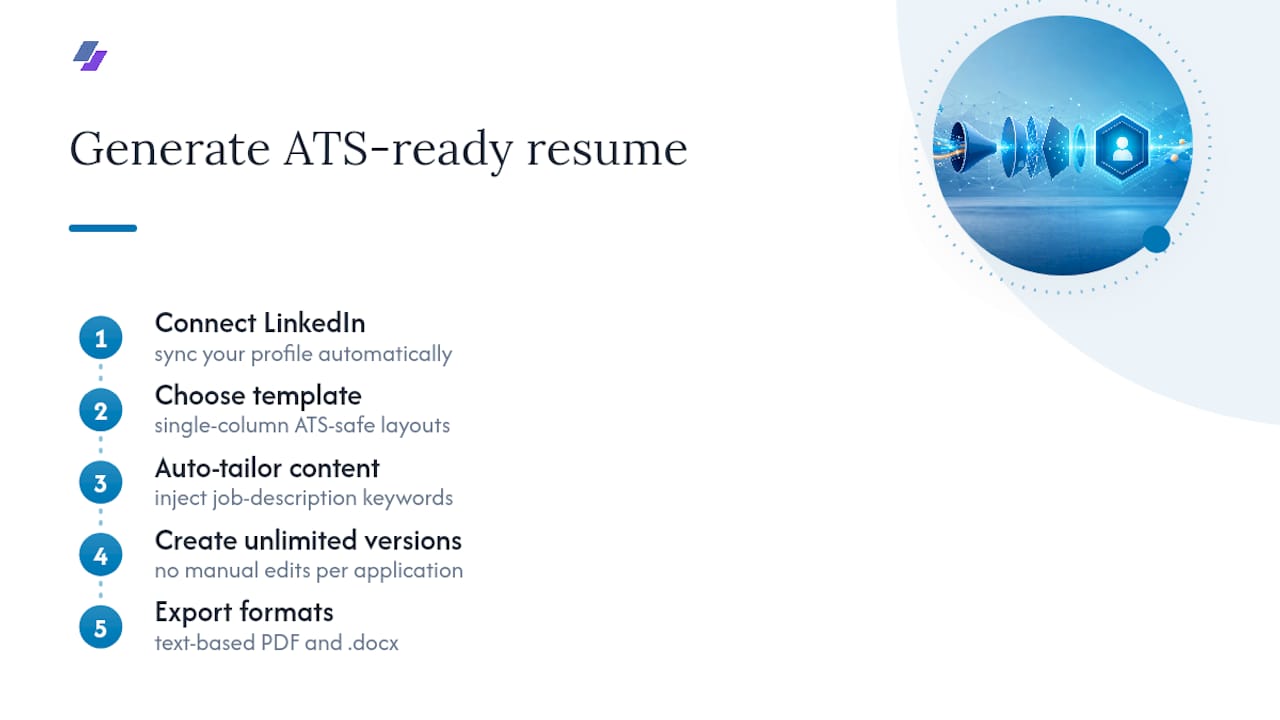
You get a tailored resume per posting instead of manually editing one file for every application, with exports ready in the text-based PDF or .docx formats this guide recommends. Start by connecting your LinkedIn profile to generate your first resume and see how quickly a compliant, tailored version comes together.
Sources
- Resume Format for ATS: ATS-Friendly Format Checklist (2026)
- ATS-Friendly Resume Format Guide (2026) | ATS Verification
- Applicant Tracking Systems | Career Services