Convert Your LinkedIn Profile Into an ATS-Ready Resume in Minutes

Yes, you can convert your LinkedIn profile into an ATS-ready resume in minutes. The fastest reliable path is syncing your profile with an ATS-aware builder like JobAlign, which pulls your experience, rewrites it into recruiter-friendly bullets, and hands you a downloadable PDF or DOCX. If you prefer not to sync an account, exporting your LinkedIn PDF and editing it manually is also possible, though slower.
TL;DR:
- Using a direct ATS-aware builder like JobAlign increases the chances of your resume passing automated filters by optimizing keywords and formatting.
- Exporting your LinkedIn profile via PDF requires manual editing to improve ATS compatibility, especially for outdated or vague descriptions.
- Importing data through your LinkedIn profile URL is fastest, but less effective if your profile privacy settings restrict visibility or your profile has gaps.
- Manual copy and paste offers control over content, but demands more time and effort to remove outdated skills and refine achievement-focused language.
- Uploading your full LinkedIn data ZIP provides the most raw information but requires technical skills to process and is less user-friendly for most applicants.
Table of Contents
- How Conversion Tools Turn Your LinkedIn Profile Into a Resume
- Which Import Method Should You Use for Your LinkedIn Data?
- How Do You Edit Imported Content So It Passes ATS Screening?
- Which Export Format and Template Should You Choose?
- What Privacy Risks Come With LinkedIn Resume Converters?
- Why JobAlign Is Built Specifically for This Conversion
- Auto-Convert or Polish by Hand? An Editorial Take
- Try JobAlign: See Your LinkedIn as a Resume in Minutes
- Sources
How Conversion Tools Turn Your LinkedIn Profile Into a Resume
Every LinkedIn to resume converter does the same basic job: it takes fields built for a social profile and reshapes them into fields built for hiring software. Your “About” section becomes a resume summary. Your “Experience” entries turn into bulleted accomplishments. Your “Skills” list becomes a keyword bank the tool can match against job postings.
The mechanics behind that mapping vary by tool, but three data-acquisition methods dominate. Some tools ask for your public profile URL and scrape what’s visible. Others accept your LinkedIn PDF export or your full data ZIP file. A smaller group offers direct account sync, pulling live data without you touching a file. Converters like PannaPDF typically accept a URL, a pasted block of text, or an uploaded file, then parse it into standard resume sections automatically.
Once the data lands inside the builder, the real work starts. A good tool doesn’t just reformat, it rewrites. Here’s what that process usually includes:
- Rewriting first-person LinkedIn prose into punchy, third-person-implied bullets
- Standardizing date formats so “Jan 2022” and “2022-01” don’t sit side by side
- Reordering sections into reverse-chronological order, which is what most ATS parsers expect
- Stripping decorative elements (icons, colored bars, multi-column layouts) that confuse scanning software
- Inserting job-specific keywords pulled from a target posting
Skip that last step and you’ve basically just reformatted your LinkedIn page. The whole point of conversion is optimization, not just translation.
Which Import Method Should You Use for Your LinkedIn Data?
Pick your import method based on how much control you want and how comfortable you are with a little manual cleanup. Here are the four paths, in order of how most people should try them.
- Public profile URL import. Copy your LinkedIn profile link and paste it into the converter. This works fast when your profile is set to public and fully filled out. It fails when your privacy settings restrict visibility, or when your profile has gaps the tool can’t fill in.
- LinkedIn PDF export as a fallback. From your own profile page, use LinkedIn’s built-in “Save to PDF” option. This captures everything, even sections hidden from public view, but the resulting file usually needs editing before it’s recruiter-ready. LinkedIn’s export prioritizes readability, not ATS parsing.
- LinkedIn data ZIP for technical users. Request your full data archive from LinkedIn’s settings menu, then run it through a command-line tool. linkedin2md converts that ZIP into Markdown and can generate a formatted PDF once you install its prerequisites. This route gives you the most raw data, but it demands comfort with terminal commands.
- Manual copy and paste. Copy sections directly from your profile into a blank document or converter text box. Slower, but it lets you clean up outdated jobs or awkward phrasing before anything gets processed.
Pro Tip: Before you import anything, scroll through your LinkedIn profile and delete outdated skills or old job titles you no longer want surfaced. Garbage in, garbage out applies just as much to resume converters as it does to any other automated tool.
How Do You Edit Imported Content So It Passes ATS Screening?
Importing your LinkedIn data is step one. Editing it into something an applicant tracking system can actually score high is step two, and it’s the step most people rush.
LinkedIn writing tends to run long and vague: “Responsible for managing a team and improving processes.” Resume writing needs to be short and measurable: “Led a 6-person team; cut onboarding time by 30% through a new training workflow.” That shift from responsibility language to achievement language is the single biggest quality gap between a LinkedIn export and a resume that actually gets read.
Keyword placement matters just as much as bullet quality. Pull the exact phrasing from the job description, not a rough synonym, and place it in your summary, your skills list, and at least one bullet per relevant role. ATS scoring grids weigh exact and near-exact keyword matches heavily, and roughly 75% of resumes get rejected by ATS filters before a human ever opens them.
Formatting rules matter here too:
- Use standard headings (“Experience,” “Education,” “Skills”) instead of creative labels
- Stick to one column and avoid tables, text boxes, or embedded images in your core sections
- Use a common font like Calibri, Arial, or Georgia at 10 to 12 point size
- Save dates in a consistent month/year format throughout
One common export issue: LinkedIn’s PDF sometimes bundles your headline and location into a single line that breaks oddly when pasted elsewhere. Fix it by manually separating those fields before you finalize anything.
Which Export Format and Template Should You Choose?
PDF is the safer default for most applications, since it preserves formatting exactly as designed and most modern ATS platforms parse it cleanly. DOCX still has a place, though, particularly when a job posting explicitly requests it or when a recruiter mentions they’ll be editing your file directly.
Template choice matters more than most job seekers assume. A visually striking template with sidebars and graphics might impress a human for three seconds, then confuse the parsing engine that scores it first. ATS-safe templates share a few traits:
- Single-column layout with clearly labeled section headers
- No tables, no text boxes, no headers/footers holding critical information
- Standard fonts and generous white space instead of dense, tiny text
Before you hit send, run through a final check: confirm your filename includes your name (not “Resume_Final_v3”), verify your phone number and email are current, and scan your target job description one more time for keywords you might have missed.
What Privacy Risks Come With LinkedIn Resume Converters?
Pasting your profile text into a converter and granting a tool full account access are two very different risk levels, and it’s worth knowing the difference before you click “allow.”
Text pasting is low risk. You control exactly what’s shared, and nothing persists beyond that session unless you save it. Account-level API access is a bigger commitment. It can pull data continuously and often requires broader permissions than the resume task actually needs.
A few habits protect you either way:
- Read the tool’s privacy policy before granting any access, and confirm what data it retains
- Never enter your LinkedIn password directly into a third-party site, legitimate tools use LinkedIn’s own authorization flow
- Redact sensitive personal notes (salary history, medical leave, personal identifiers) before exporting anything
Platform-level privacy policies, like Google’s, set the standard for what “reasonable data handling” looks like. Hold any resume tool to that same bar.
Why JobAlign Is Built Specifically for This Conversion
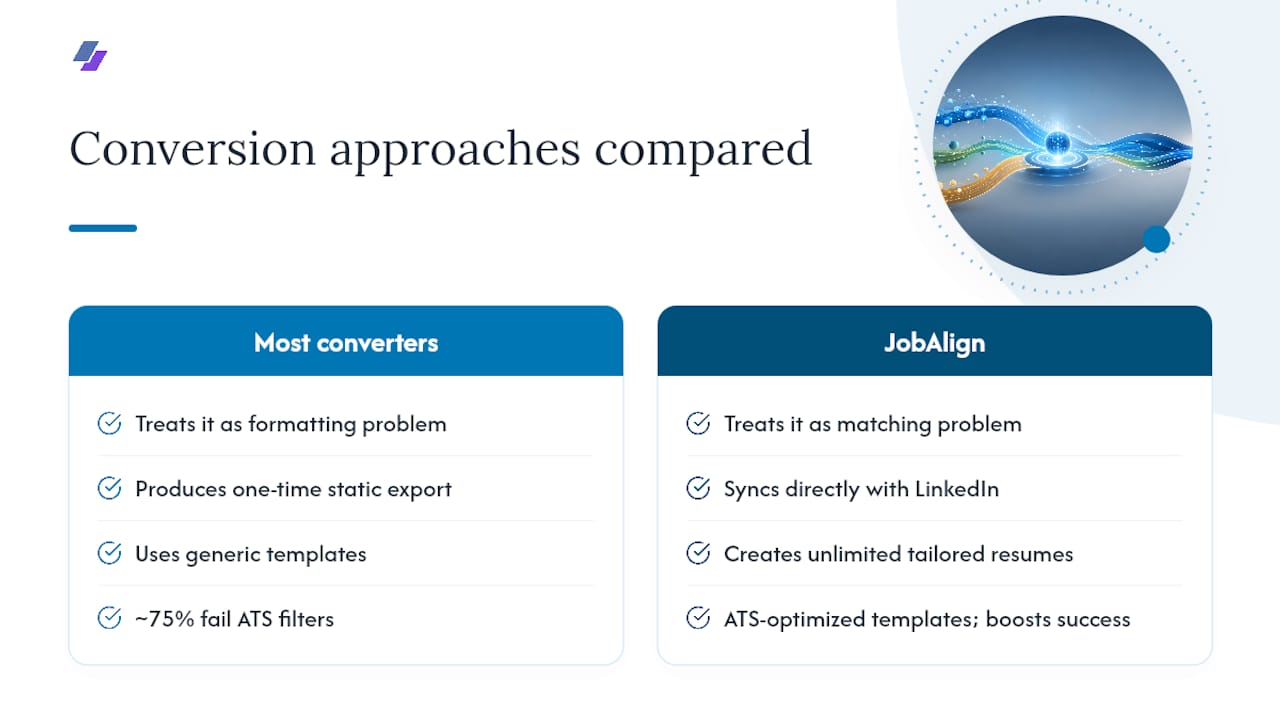
Most converters treat LinkedIn to resume as a formatting problem. JobAlign treats it as a matching problem, because a resume that looks clean but misses the right keywords still gets filtered out before a recruiter ever sees it.
JobAlign syncs directly with your LinkedIn profile, pulls your experience and skills automatically, then rebuilds each resume around the specific job description you’re targeting. That’s a meaningfully different approach than a one-time export: instead of one static resume, you get a tailored version per job posting, each one re-optimized for the posting in front of you.
Roughly 75% of resumes never make it past ATS filters. JobAlign’s approach aims to improve that success rate for tailored resumes.
If you’re applying to multiple roles across different companies or industries, generic one-size-fits-all resumes are working against you. JobAlign’s ATS-optimized templates exist specifically to close that gap.
Auto-Convert or Polish by Hand? An Editorial Take
Here’s the honest tension in this whole topic: automated conversion is fast, but speed isn’t always the only thing that matters. If you’re applying to one or two roles you truly care about, spend the extra 20 minutes hand-editing every bullet. If you’re applying to 15 roles this month because your industry is competitive or your timeline is tight, manual editing simply doesn’t scale, and that’s exactly the scenario automated tools were built for.
The mistake I see job seekers make most often isn’t choosing the wrong method. It’s assuming any converted resume is “done” the moment it exports. The keyword tuning and final ATS check are what should to close the remaining gap, every single time.
— Johan
Try JobAlign: See Your LinkedIn as a Resume in Minutes
You’ve seen the mechanics, the import options, and the editing rules that separate a passable resume from one that actually clears ATS filters. JobAlign handles nearly all of that automatically. Rather than manually rewriting bullets and hunting for keywords job by job, you sync your profile once and generate tailored resumes for multiple applications without redoing the setup.
Start with the free LinkedIn resume builder to generate your first export and see the keyword matching in action. From there, if you’re applying to multiple roles, a credit pack gets you a tailored version per posting instead of one static file. Head to the LinkedIn to Resume tool, connect your profile, and receive a formatted, ATS-ready draft within minutes, ready for you to review and download.
Sources
- juanmanueldaza/linkedin2md
- How to Convert LinkedIn Profile to Resume: A Super Quick Guide 2026
- Privacy Policy — Google