Plain Text Resume: Your Complete Format Guide (2026)

A plain text resume is a .txt (ASCII) file stripped of all formatting, fonts, and hidden codes so that any ATS, job board, or email client can read it without errors. The fastest way to produce one: open your existing resume, copy all text, paste it into Notepad (Windows) or TextEdit in plain-text mode (Mac), then repair the structure manually. Before you submit, run through this quick checklist:
- File type: save as .txt with UTF-8 encoding
- Section headers: ALL CAPS (e.g., EXPERIENCE, EDUCATION)
- Bullet character: a single hyphen (-) or asterisk (*), used consistently throughout
Key Takeaways
A plain text resume in .txt format, with ALL CAPS headers, consistent hyphen bullets, and lines kept to roughly 65 characters, gives any ATS or job board a clean, unambiguous file to parse.
| Point | Details |
|---|---|
| Use .txt with UTF-8 encoding | Save your file as plain text with UTF-8 encoding to prevent garbled characters across systems. |
| ALL CAPS headers and hyphen separators | Signal section breaks to parsers without relying on fonts, bold, or borders. |
| Keep lines to ~65 characters | Prevents awkward mid-sentence wrapping in ATS fields and email clients. |
| Run the copy-paste test before submitting | Paste your resume into a fresh Notepad window to confirm it reads cleanly before any submission. |
| JobAlign automates ATS formatting | JobAlign syncs with LinkedIn and generates keyword-tailored, ATS-compatible resumes without manual conversion. |
Table of Contents
- What is a plain text resume and why do employers request it?
- When should you submit a plain text resume vs. a formatted one?
- How to build a clean plain text resume step by step
- How to format plain text for job boards, ATS fields, and email submissions
- How to convert from Word, Google Docs, or PDF to plain text
- A ready-to-copy plain text resume template
- A filled plain text resume example with formatting callouts
- How to test your plain text resume and fix common parsing errors
- Extra tips and common mistakes to avoid
- Why every job seeker should keep a plain-text master file
- JobAlign makes ATS-ready resumes faster than manual formatting
- Sources
What is a plain text resume and why do employers request it?
A plain text resume, also called a text-only resume or ASCII resume, is a document saved as a .txt file with no bold, italics, tables, columns, or embedded images. What you see is literally what the machine reads: raw characters, spaces, and line breaks.
Employers and job boards request this format for three practical reasons. First, ATS parsers can misread formatted documents, especially those built with tables, sidebars, or multi-column layouts. When a parser hits a table cell, it may scramble the text order entirely, placing your job title in the skills field and your phone number in the employer name field. Second, many job boards ask you to paste your resume directly into a text field, and a Word or PDF document loses its formatting the moment it hits that box. Third, some recruiters request a plain-text version in the body of an email so they can forward it without attachment compatibility issues.
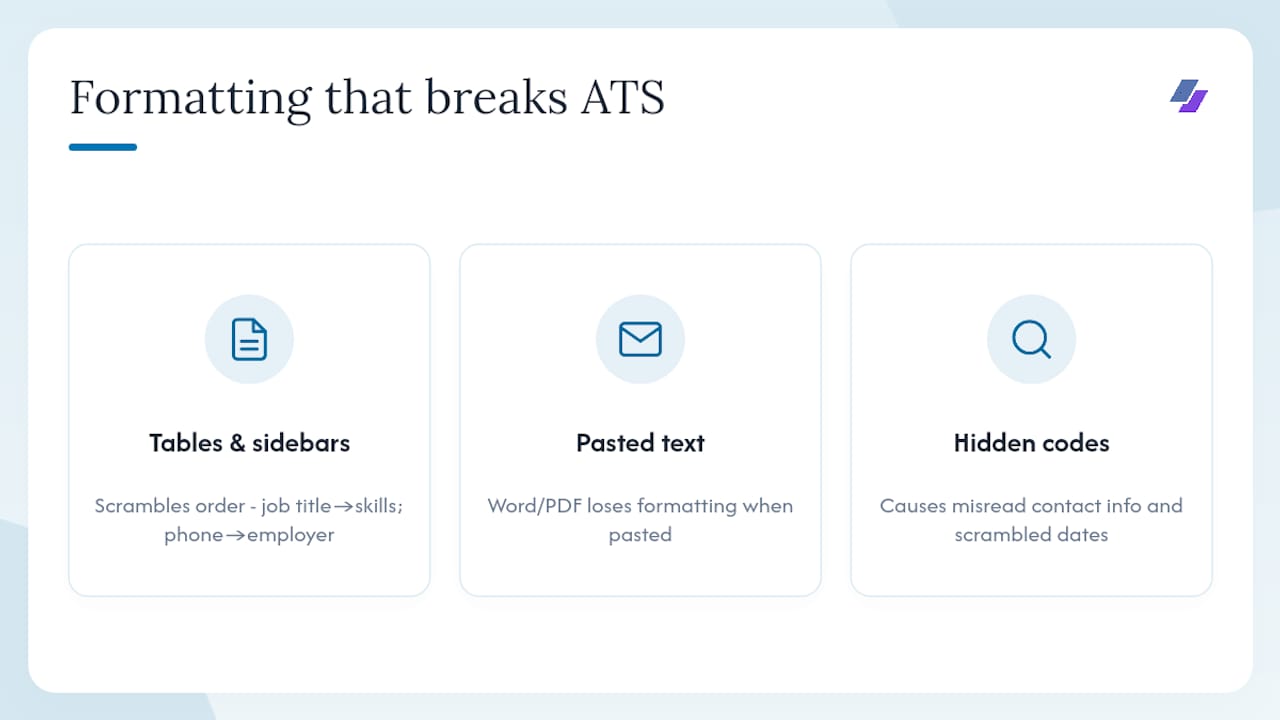
The core value of stripping formatting is removing ambiguity for the parser. As Indeed notes, plain text avoids “hidden” codes that cause misread contact info, scrambled dates, and misplaced fields. A formatted PDF looks polished to a human eye, but to a bot it can be a minefield.
When should you submit a plain text resume vs. a formatted one?
Follow the employer’s instructions first, every time. If the job posting says “paste your resume below” or “submit as .txt,” that is your answer. If it says “attach your resume,” send a well-designed PDF or .docx.
Here is a practical decision framework:
- Job-board text field (LinkedIn Easy Apply, Indeed, Greenhouse): paste plain text; the field strips formatting anyway
- ATS upload that accepts .docx or PDF: send a formatted, ATS-friendly file, not a .txt
- Recruiter email requesting resume in the body: plain text in the email body, formatted file as an attachment
- Company portal that explicitly requests .txt: plain text only
The ATS format checklist from ATSGrader points out that multi-column templates and embedded objects cause the most parsing errors, so even your formatted resume should follow single-column rules. Think of your plain-text version as the fallback that always works, and your formatted PDF as the version you send when design is welcome.
How to build a clean plain text resume step by step
Whether you are starting fresh or converting an existing file, these steps produce a clean, parser-ready result. The goal is a document with zero hidden codes and consistent, predictable structure.
- Copy your full resume text. Select all content in your Word or Google Docs file and copy it.
- Paste into a plain-text editor. Use Notepad (Windows), TextEdit in plain-text mode (Mac), or VS Code. This strips fonts, colors, and embedded objects immediately.
- Clear any remaining formatting. In Word, use the Clear All Text Formatting function (Home tab, eraser icon) before copying, so hidden styles do not survive the paste.
- Fix smart quotes and special characters. Replace curly quotes (" “) with straight quotes (”), and replace em dashes with two hyphens (–) or a comma.
- Switch your editing font to a monospace font like Courier. This keeps visual alignment consistent across different editors and prevents surprises when the file opens on another machine.
- Replace all bullet symbols. Swap out any special bullet characters (•, ▪, ◦) with a hyphen (-) or asterisk (*). Pick one and use it throughout the entire document.
- Make section headers ALL CAPS. Change “Experience” to EXPERIENCE, “Education” to EDUCATION, and so on.
- Add simple separators. Use a row of hyphens (—) or equals signs (===) under each header to visually divide sections without using lines or borders.
- Check date formats. Use a consistent inline format like “January 2022 - March 2024” or “01/2022 - 03/2024” throughout.
- Wrap lines at roughly 65 characters. Indeed’s guidance recommends keeping line lengths to about 65 characters to prevent awkward wrapping in email clients and ATS fields.
Dos and don’ts at a glance:
- Do use spaces for alignment, never the Tab key (tabs get stripped or reinterpreted)
- Do keep a single-column structure throughout
- Do place your contact information at the very top of the body, never in a header or footer
- Do not use tables, text boxes, or columns
- Do not include images or logos
- Do not mix bullet styles (some hyphens, some asterisks)
On keyword placement: parsers harvest keywords most reliably from the Summary and Skills sections near the top of the document. Put your most important job-specific terms there first, then reinforce them in your Experience bullet points. For a deeper look at where to place ATS keywords, the placement logic is the same whether your file is .txt or .docx.
How to format plain text for job boards, ATS fields, and email submissions
Pasting into a job-board field and uploading a .txt file are not identical experiences for a parser. When you upload a file, the system reads the raw bytes. When you paste, the system reads whatever your clipboard delivers, which can include invisible formatting characters from Word or Google Docs. Always paste from a plain-text editor, not directly from a formatted document.
For email body submissions, keep these rules in mind:
- Left-align everything; centered text often shifts unpredictably across email clients
- Keep lines under 65 characters so they do not wrap mid-sentence
- Use ALL CAPS headers with a separator line below each one
- Leave a blank line between each section for readability
Here is a quick paste preview you can copy directly:
JANE DOE
jane.doe@email.com | (555) 123-4567 | linkedin.com/in/janedoe
New York, NY

SUMMARY
---
Marketing professional with 6 years of experience in B2B SaaS,
specializing in demand generation and content strategy.

EXPERIENCE
---
Senior Marketing Manager | Acme Corp | Jan 2021 - Present
- Led a 12-person team across paid, organic, and email channels
- Increased qualified pipeline by 40% in FY2023
The ATS-friendly template from ATSGrader recommends this same single-column, contact-at-top structure as the base for any ATS submission.
Editing guidance at a glance:
| Parameter | Recommended setting |
|---|---|
| Font for editing | Courier or Courier New (monospace) |
| Line length | ~65 characters |
| Margins (if printing) | 1 inch |
| Encoding | UTF-8 |
| Alignment | Left only |
How to convert from Word, Google Docs, or PDF to plain text
Microsoft Word
- Open your resume in Word.
- Select all text (Ctrl+A / Cmd+A) and click the Clear All Text Formatting button on the Home tab.
- Go to File → Save As → choose “Plain Text (.txt)” from the format dropdown.
- When prompted, select UTF-8 encoding and click OK.
- Reopen the .txt file in Notepad, then repair bullets, add ALL CAPS headers, and fix any smart quotes that survived.
Google Docs
- Go to File → Download → Plain Text (.txt).
- Open the downloaded file in Notepad or TextEdit.
- Alternatively, select all text in Docs, copy, and paste into Notepad directly. This often produces a cleaner result than the download, since Docs sometimes inserts extra line breaks on export.
- Fix formatting manually: add separators, replace bullets, capitalize headers.
If you still have the original Word or Docs file, use that instead. Converting from PDF introduces OCR-style errors: ligatures (“fi”, “fl”) become garbled characters, columns merge into a single scrambled stream, and line breaks appear mid-word.
If the PDF is your only source:
- Open the PDF in Adobe Acrobat Reader or a browser.
- Select all text, copy, and paste into Notepad.
- Scan carefully for merged words, broken lines, and missing spaces.
- Rebuild the structure from scratch using the template in the next section.
Common post-conversion issues and quick fixes:
- Smart quotes (" "): find-and-replace with straight quotes (")
- Tab characters: find-and-replace with two or three spaces
- Stray bullet symbols (•, ▪): find-and-replace with a hyphen (-)
- Wrapped lines mid-sentence: manually add a line break at the 65-character mark
- Missing blank lines between sections: add one blank line after each separator
A ready-to-copy plain text resume template
Copy the block below into a .txt file, replace the placeholders with your information, and save with UTF-8 encoding. Name the file: Firstname_Lastname_Resume.txt.
[YOUR FULL NAME]
[your.email@example.com] | [(555) 000-0000] | [linkedin.com/in/yourprofile]
[City, State]

SUMMARY
---
[2-3 sentences. Include your top job title, years of experience, and 2-3
keywords from the job description you are targeting.]

SKILLS
---
[Skill 1] | [Skill 2] | [Skill 3] | [Skill 4] | [Skill 5]
[Skill 6] | [Skill 7] | [Skill 8]

EXPERIENCE
---
[Job Title] | [Company Name] | [Month Year] - [Month Year or Present]
- [Achievement or responsibility. Quantify where possible.]
- [Achievement or responsibility.]
- [Achievement or responsibility.]

[Job Title] | [Company Name] | [Month Year] - [Month Year]
- [Achievement or responsibility.]
- [Achievement or responsibility.]

EDUCATION
---
[Degree, Major] | [University Name] | [Year]

CERTIFICATIONS (if applicable)
---
[Certification Name] | [Issuing Body] | [Year]
Where to insert job-specific keywords: the Summary and Skills sections are where parsers look first. Pull the exact phrases from the job description (e.g., “project management,” “Salesforce CRM,” “cross-functional collaboration”) and place them verbatim in those two sections before repeating them in your Experience bullets.
A filled plain text resume example with formatting callouts
Here is a realistic example. Read the callouts below the block to understand why each choice was made.
MICHAEL TORRES
m.torres@email.com | (312) 555-8821 | linkedin.com/in/michaeltorres
Chicago, IL

SUMMARY
---
Software engineer with 5 years of experience in Python, Django, and
AWS cloud infrastructure. Proven track record in agile development,
CI/CD pipelines, and cross-functional team collaboration.

SKILLS
---
Python | Django | AWS | Docker | PostgreSQL | REST APIs | Git | Agile

EXPERIENCE
---
Software Engineer | DataBridge Inc. | June 2021 - Present
- Designed and deployed 3 microservices on AWS Lambda, reducing
- Led migration of legacy monolith to containerized architecture
  using Docker and Kubernetes
- Collaborated with product and QA teams in 2-week agile sprints

Junior Developer | Nexio Solutions | August 2019 - May 2021
- Built RESTful APIs serving 50,000+ daily active users
- Reduced database query time by 20% through index optimization

EDUCATION
---
B.S. Computer Science | University of Illinois Chicago | 2019
Callouts:
- Dates are inline (e.g., “June 2021 - Present”) so the parser reads employer, title, and tenure in one unbroken line. Putting dates on a separate line or in a right-aligned column breaks that relationship in plain text.
- Headers are ALL CAPS with a hyphen separator below. This signals a new section to the parser without relying on font size or bold styling.
- Hyphens (-) are used consistently as bullet characters throughout. Mixing hyphens and asterisks can confuse extraction routines that look for a repeating pattern to identify list items.
- Keywords appear in Summary and Skills first. An ATS harvests “Python,” “Django,” “AWS,” and “agile” from the top of the document before it even reaches the Experience section, which reinforces the match score.
How to test your plain text resume and fix common parsing errors
Before you submit anywhere, run through this testing checklist:
- Copy-paste test: select all text in your .txt file, copy, and paste into a fresh Notepad window. If it looks clean there, it will look clean to most parsers. This simple step, recommended by ATSGrader, approximates how a job-board bot reads your content.
- Open in a different editor: open the file in both Notepad and your browser (drag the .txt file into Chrome). If either view shows garbled characters, your encoding is wrong. Re-save with UTF-8.
- Check field extraction: if the job board offers an ATS preview after upload, review it. Confirm your name, email, phone, job titles, and employers all appear in the correct fields.
- Send to yourself by email: paste the resume into a Gmail or Outlook compose window and send it to yourself. Check how it renders on mobile.
- Count your line lengths: scroll through and confirm no line exceeds roughly 65 characters. Long lines wrap unpredictably in narrow ATS fields.
Top 5 parsing errors and one-line fixes:
| Error | Fix |
|---|---|
| Tables and sidebars | Remove entirely; rewrite content as single-column bullet lines |
| Tab characters | Find-and-replace all tabs with two or three spaces |
| Smart quotes and curly apostrophes | Find-and-replace with straight equivalents (" and ') |
| Inconsistent bullet characters | Pick one (hyphen or asterisk) and apply it everywhere |
| Multi-column layout | Collapse to a single column; move all content to the left margin |
Pro Tip: Store your master plain-text resume in Google Drive or Dropbox. When a new job posting requires a paste-in submission, open the master, duplicate it, swap in the job-specific keywords, and paste. You will never scramble to reformat under deadline pressure.
Extra tips and common mistakes to avoid
A few additional rules separate a clean, parser-ready file from one that quietly fails:
- Pick one bullet character and never deviate. Consistent hyphens or asterisks throughout the document maintain predictable parser behavior. Inconsistent styles can confuse extraction routines.
- Never use the Tab key for alignment. Tabs get stripped or reinterpreted in many text editors. Use spaces instead, and always verify the result in Notepad or TextEdit.
- Keep your contact information in the body, not a header. ATS systems frequently skip content placed in document headers and footers entirely.
- Use a plain-text URL for your LinkedIn profile. Write it as
linkedin.com/in/yourname, not as a hyperlink with anchor text. Hyperlinks do not survive the paste. - Avoid emoji and decorative characters. A star emoji (★) or a checkmark (✓) may render as a question mark or a blank box in certain parsers.
- Keep dates consistent. Choose one format (“January 2022” or “01/2022”) and apply it to every entry.
On keyword optimization in plain text: the absence of formatting actually makes keyword placement more straightforward. There are no hidden text boxes or image-based text to worry about. Place your most critical terms in the Summary section first, then in Skills, then reinforce them in Experience bullets. For a structured approach to optimizing your resume with AI, the same keyword logic applies whether the output is a .txt file or a formatted PDF.
Why every job seeker should keep a plain-text master file
Most job seekers treat the plain-text resume as a last resort, something they scramble to produce when a job board refuses their PDF. That is the wrong frame. A well-maintained plain-text master is actually the most versatile asset in your application toolkit.
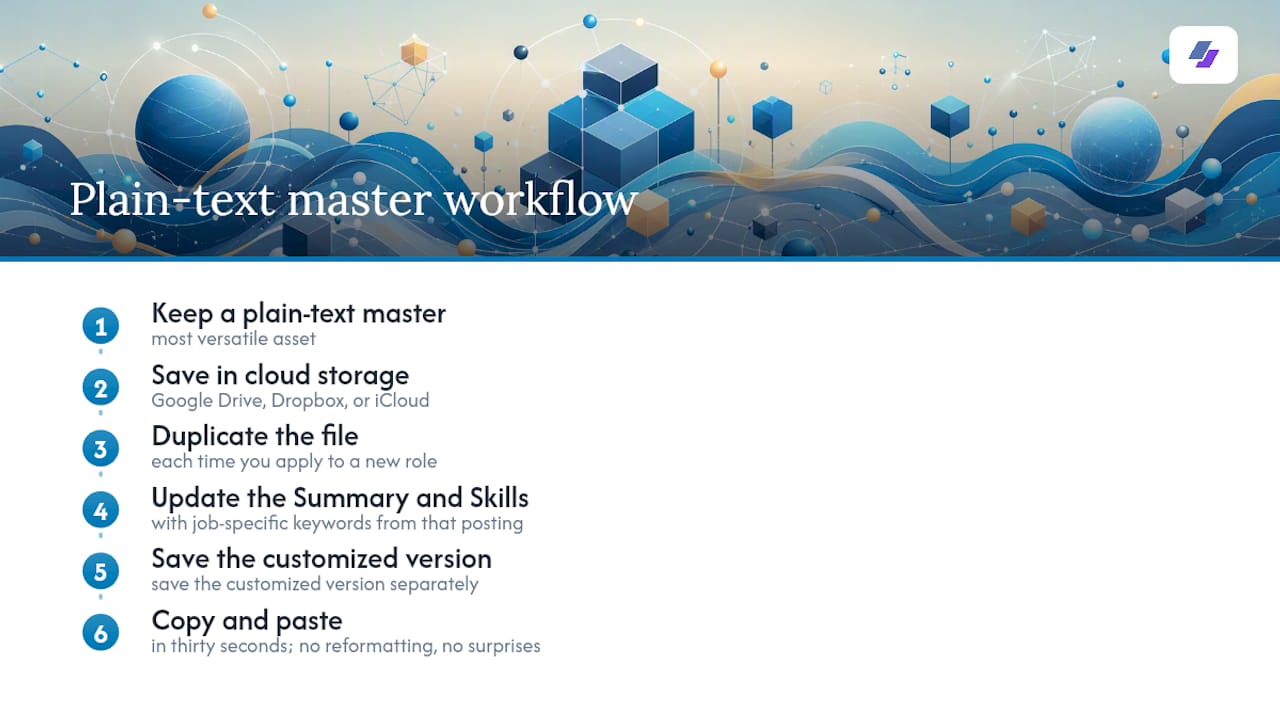
Here is the practical case: job boards strip formatting anyway, so the version that arrives in an ATS is often closer to your plain-text file than to your polished PDF. Keeping a clean .txt version means you control what the parser sees, rather than leaving it to chance. When an employer emails you at 9 PM asking for a resume in the body of a reply, you open your master file, copy, and paste in thirty seconds. No reformatting, no surprises.
The operational tip worth adopting today: save your plain-text master in cloud storage (Google Drive, Dropbox, or iCloud) with a clear filename like Firstname_Lastname_Resume_Master.txt. Each time you apply to a new role, duplicate the file, update the Summary and Skills sections with job-specific keywords from that posting, and save the customized version separately. This workflow keeps your master clean and gives you a version-controlled record of every application. For high-volume applications, pairing this with a resume customization workflow cuts the time per application significantly.
JobAlign makes ATS-ready resumes faster than manual formatting
Manual plain-text conversion works, but it takes time, and every manual step is a chance to introduce a formatting error. JobAlign takes a different route: sync your LinkedIn profile, paste in the job description, and JobAlign generates a fully tailored, keyword-optimized resume in minutes. The free LinkedIn resume generator handles the keyword extraction and ATS formatting automatically, so you spend your time on applications, not on find-and-replace sessions in Notepad.
Every resume JobAlign produces follows single-column, ATS-compatible structure with correct section ordering and job-specific keyword placement built in. Sync through the browser extension and your first LinkedIn-only resume is free, then buy a credit pack: one credit per job posting, and the credits never expire.