Copyable Resume File Name Templates That Pass ATS and Stay Under 1 MB

Name your resume file like this: First Last - Role - Resume.pdf (for example, “Maria Santos - Marketing Manager - Resume.pdf”). This format gives recruiters your identity, the job you want, and the document type in one glance. It also sorts cleanly in a folder full of “resume_final_v2” files from other candidates.
TL;DR:
- Using a clear filename format with your full name, targeted role, and document type ensures easy sorting and prevents parsing errors, especially when applying to multiple jobs.
- Keep your resume PDF under 1 MB, preferably around 500 KB, by avoiding high-resolution images or logos and exporting directly from your resume tool to ensure ATS compatibility and quick uploads.
- Use spaces and short dashes in the filename for readability, and avoid special characters or excessive length to prevent upload failures across different ATS platforms.
- Always verify that your filename matches your LinkedIn or other professional profiles and remove any embedded metadata to prevent revealing outdated information or confusing recruiters.
- Employ tools like JobAlign to automatically generate ATS-optimized, properly named resumes tailored for each application, reducing formatting errors and saving time.
Table of Contents
- Resume File Naming Conventions and Ready-to-Use Templates
- File Format, Size, and ATS Compatibility
- Formatting Rules: Separators, Capitalization, and Metadata
- Examples for Common Application Scenarios
- Quick Save and Submission Checklist
- Why Naming and File Choices Actually Affect Your Callback Rate
- A Recruiter-Minded Habit Worth Keeping
- Use JobAlign to Skip the Formatting Guesswork
- Sources
- FAQ
Resume File Naming Conventions and Ready-to-Use Templates
The formula behind that filename has three parts, and each one earns its place. Skip a part and you lose something a recruiter or an ATS actually uses.
Full name first. Recruiters juggle dozens of files a day, often downloaded straight into one folder. Standardized filenames that lead with your name let hiring teams sort and search without opening every attachment. Skip nicknames unless that is the name on your LinkedIn and other applications. If your legal name is Alejandro but you go by Alex professionally, use Alex, and stay consistent everywhere.
Role or job title second. This part is situational. If you’re applying to one specific opening, include the title: “Alex Reyes - Senior Data Analyst - Resume.pdf.” If you’re sending the same resume to a mass job board or a general talent pool, skip the role and just write “Alex Reyes - Resume.pdf.” Adding a role you’re not actually targeting is worse than leaving it out.
Document type last. Always close with “Resume” or “Cover Letter.” That single word prevents mix-ups when you’re sending multiple files in the same email.
Here’s how the formula flexes across common situations:
- Standard external application: Jordan Kim - Product Manager - Resume.pdf
- Internal application (same company): Jordan Kim - Internal Transfer - Resume.pdf
- Recruiter email attachment: Jordan Kim - Resume - UX Design.pdf
- Referral submission: Jordan Kim - Resume (Referred by Casey Lin).pdf
- Portfolio or work sample: Jordan Kim - Portfolio - UX Design.pdf
If your name includes accented characters or a non-English script, keep the accents when the system accepts them, but have a plain-ASCII backup ready (“José” and “Jose”) in case an older portal chokes on special characters. For hyphenated or multi-part surnames, keep them together as written on your ID or LinkedIn, since consistency across every document you submit matters more than any stylistic preference.
File Format, Size, and ATS Compatibility
PDF is the safer default for almost every application. PDF preserves your layout across devices and operating systems, so a hiring manager on a Mac sees the same spacing and fonts you designed on a PC. DOCX is acceptable when a job posting explicitly asks for it, since some older ATS platforms parse Word files more reliably than PDFs, but treat that as the exception, not the rule.
Size matters more than most jobseekers realize.
By the numbers: Aim to keep your resume PDF under 1 MB, with 500 KB as the preferred target. Larger files slow down uploads on mobile connections and can time out on portals with strict limits.
A few habits keep your file lean and functional:
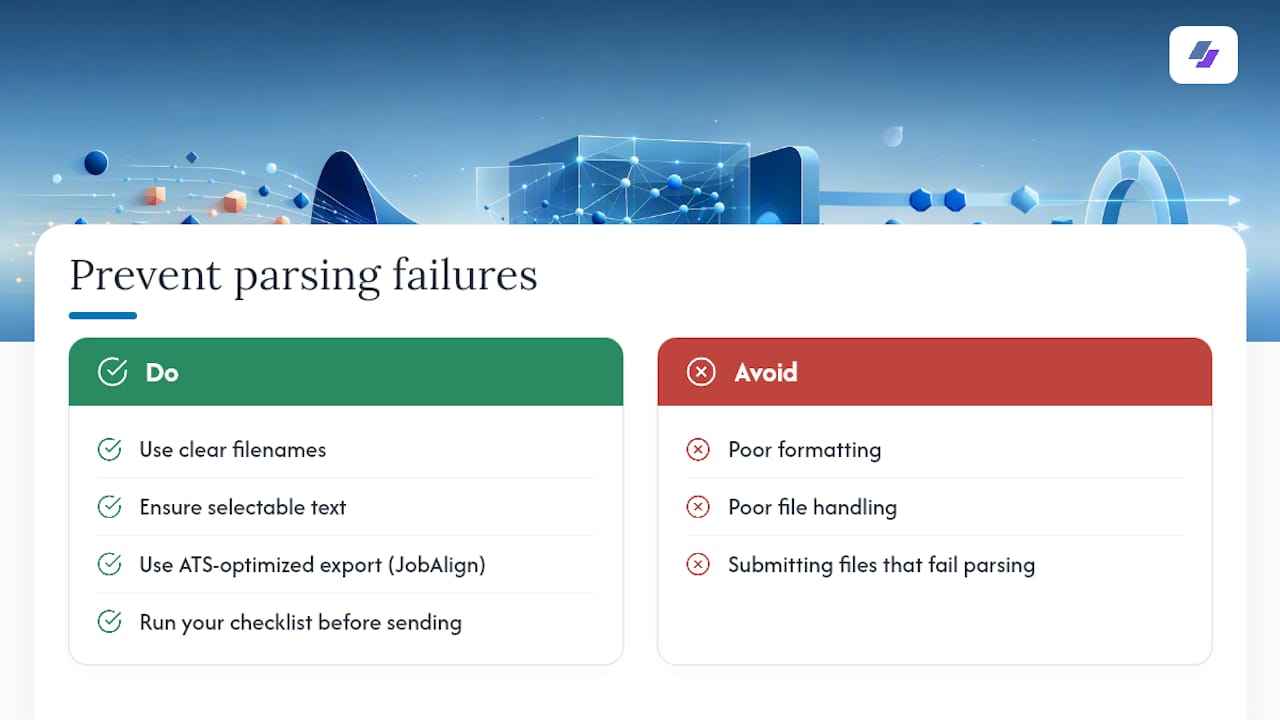
- Export directly from your word processor or resume tool instead of scanning a printed copy.
- Avoid embedding high-resolution photos, logos, or decorative graphics that inflate file size without adding information an ATS can read.
- Test your PDF by trying to highlight and copy a line of text. If you can’t select it, the file is likely an image, not real text, and most ATS software can’t parse it.
- If a file runs too large, run it through a dedicated compressor or optimizer built for résumés rather than a generic photo compressor, since those tools often strip formatting along with the file weight.
Most résumé builders and word processors let you control export quality, so check your settings before you save. A résumé built in JobAlign’s optimization workflow exports with these size and format issues already handled, which removes one more place for something to go wrong on submission day.
Formatting Rules: Separators, Capitalization, and Metadata
Small formatting choices decide whether your filename displays cleanly or turns into a string of underscores and percent signs on some outdated portal.
- Use spaces with short dashes between the three parts of your filename: “First Last - Role - Resume.pdf.” This reads clearly to a human and survives most upload systems intact.
- Use underscores as a backup only when a specific system strips spaces automatically, turning your file into an unreadable mess of %20 characters.
- Avoid special characters like slashes, ampersands, parentheses stacked on top of brackets, or emoji. These commonly break upload forms or cause sorting errors in applicant tracking software.
- Keep capitalization simple. Title case for names and roles (“Marketing Manager,” not “marketing manager”) reads as more polished than all lowercase or ALL CAPS.
- Keep the role wording short. “Senior Analyst” beats “Senior Financial Data and Reporting Analyst” every time; save the long version for your resume body.
Pro Tip: Before you attach that file, check its metadata. Word processors and PDF tools often save your document with the author name from a previous job, tracked-changes history, or an old file path buried in the properties. Removing that metadata takes thirty seconds and prevents an awkward moment if a recruiter opens the file’s document properties and sees someone else’s name.
Examples for Common Application Scenarios
Different situations call for slightly different filenames. Here’s how to adapt the same core formula without overthinking it.
- Entry-level external application. “Taylor Brooks - Marketing Coordinator - Resume.pdf” works for a first-job or early-career applicant applying through a standard job board.
- Senior or executive-level application. “Taylor Brooks - VP of Operations - Resume.pdf” keeps the seniority visible without padding the filename with extra credentials.
- Technical role with a job ID. “Taylor Brooks - Backend Engineer - Req4521 - Resume.pdf” is useful when a company’s applicant tracking software specifically asks for the requisition number, common at large enterprises and government postings.
- Email attachment versus portal upload. For email, add a touch more context since there’s no folder structure sorting your file automatically: “Taylor Brooks - Resume - Backend Engineer.pdf.” For a portal upload, the system often already labels the file type on its own, so you can drop back to the simpler “Taylor Brooks - Resume.pdf.”
- Adding location or date. Only add these when a role is location-specific or the employer requests a dated version: “Taylor Brooks - Resume - Chicago.pdf” or “Taylor Brooks - Resume - March 2026.pdf.” Skip dates for general applications; they add clutter without adding value.
- Internal transfer. “Taylor Brooks - Internal Transfer - Resume.pdf” signals immediately to HR that this isn’t an outside candidate.
- Recruiter-submitted resume. “Taylor Brooks - Resume - Submitted by [Agency Name].pdf” helps agency recruiters track which candidate belongs to which client relationship.
- Portfolio or writing sample attachment. “Taylor Brooks - Portfolio - Content Writing.pdf” separates supporting work samples from the resume itself, which matters when you’re sending three or four files in one application.
Browsing ATS-ready resume examples by job can help you see how naming, formatting, and content work together for your specific field.
Quick Save and Submission Checklist
Run through this before you hit “attach” or “upload”:
- Does the filename match your chosen template, and is your name spelled exactly as it appears on LinkedIn and your other documents?
- Is the file saved as PDF (or DOCX if specifically requested), and can you highlight and copy text inside it?
- Is the file size under 1 MB, ideally closer to 500 KB, with images or graphics compressed if needed?
- Did the job posting or recruiter give specific naming instructions? If so, those instructions always override any default template, no exceptions.
Why Naming and File Choices Actually Affect Your Callback Rate
A large share of resumes never reach a human because of parsing failures related to poor formatting and file handling, not lack of qualifications. Clear filenames and selectable text address two of the most common failure points. JobAlign, for instance, builds ATS-optimized keyword matching into every export to reduce these formatting errors. The checklist above targets the same weak points from the applicant’s side, before the file ever leaves your inbox.
A Recruiter-Minded Habit Worth Keeping
I default to one template, “Name - Role - Resume.pdf,” for every application and never improvise a new one. Consistency makes your own tracking easier too. You’ll never wonder which version of “resume_v3_final” you actually sent.
— Johan
Use JobAlign to Skip the Formatting Guesswork
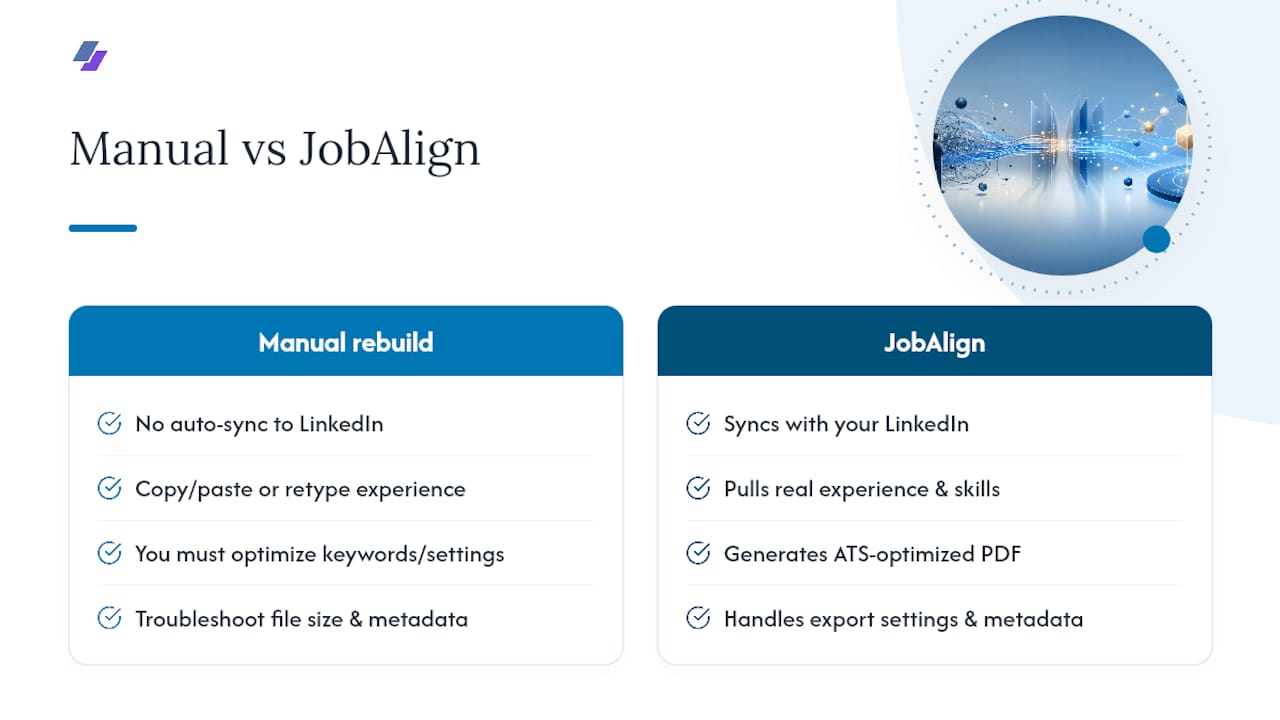
Jobalign is the alternative to manually rebuilding your resume for every application. It syncs with your LinkedIn profile, pulls your real experience and skills, and generates a tailored, ATS-optimized PDF with the export settings and keyword matching already handled, so you’re not troubleshooting file size or hunting for hidden metadata after the fact. Because it generates a tailored resume for each specific job, you get a correctly formatted, correctly named file every time instead of reusing one general version. Try the free LinkedIn resume generator to see your first ATS-ready export in minutes, or check the credit packs if you’re applying to multiple roles and want a tailored version for each.
Sources
Check Indeed’s naming guide, Konnect2Tools’ PDF optimizer, and JobAlign’s ATS resume guide before submitting.
FAQ
What Is the Best Name for a Resume File?
The best format is “First Last - Role - Resume.pdf,” which puts your identity, target role, and document type in one clean, scannable filename. Drop the role for mass applications where no single job title applies.
How Do You Name Your Resume File?
Start with your full first and last name, add the job title if you’re targeting one specific role, and end with the word “Resume.” Use spaces with short dashes as separators, and always check whether the employer gave its own naming instructions first.
What Type of File Should a Resume Be?
PDF is the safest choice for most applications because it locks in your formatting across devices. Submit DOCX only when a job posting specifically requests it, since some older applicant tracking systems still parse Word documents more reliably.
What Is a Resume Folder Called?
There’s no single official term. Recruiters commonly refer to it as a candidate folder, applicant tracking folder, or simply the resume inbox, depending on the ATS platform in use, and a clear filename is what makes that folder searchable in the first place.
Can a Tool Like JobAlign Name and Format My Resume Automatically?
Yes. JobAlign syncs with your LinkedIn profile to generate a tailored resume and exports it as an ATS-optimized PDF with formatting and file settings already handled, so you’re not manually managing size or file type for each application.